Article about some of the egregious breaks in privacy at Facebook as well as the conditions of the proposed settlement against Facebook (-- still the WORLD wide web, though!)
----------------
Facebook has agreed to settle the Federal Trade Commission’s eight-count complaint in which the FTC charged that the social networking service, which is widely used by libraries, had deceived consumers by promising to keep their information private and then repeatedly making it public.
......
Under the proposed settlement, Facebook is:
barred from making misrepresentations about the privacy or security of consumers’ personal information;
required to obtain consumers’ affirmative express consent before enacting changes that override their privacy preferences;
required to prevent anyone from accessing a user’s material no more than 30 days after the user has deleted his or her account;
required to establish and maintain a comprehensive privacy program designed to address privacy risks associated with the development and management of new and existing products and services, and to protect the privacy and confidentiality of consumers’ information; and
required, within 180 days, and every two years after that for the next 20 years, to obtain independent, third-party audits certifying that it has a privacy program in place that meets or exceeds the requirements of the FTC order, and to ensure that the privacy of consumers’ information is protected.
read more here
http://www.thedigitalshift.com/2011/11/social-media/facebook-settles-privacy-complaint-with-ftc/
Tuesday, November 29, 2011


Saturday, November 19, 2011
Getting your content from Facebook - for archiving, Google+ and more
So, you've written a lot of notes and would now like to turn them into a blog or perhaps you have a ton of photos on facebook but now need a copy of them - lost your originals (egads), or you'd like to move them to Flickr or Picasa (which is also shared thru to Google+).
There are a variety of ways to get your photos, some using extensions or addons (if you are a Chrome user and just want to move your photos from Facebook to Google+, try the Move2Picasa extension).If you know of other extensions or tools to do this, please just add them them in the comments (the software Facebook Album Downloader no longer works, btw).
Batch downloading from Facebook also gives you all of your content which you can then repurpose in a number of different ways - you get copies of your profile info, your wall, your notes, your messages, videos, pix, etc. in one organized and zipped file.
A few thoughts I had for how to repurpose Facebook content: turn your notes into a blog, use your profile info to craft your linkedin (or other bio information elsewhere on the web), copy or move your videos to Facebook, find messages, get copies of your photos to use for whatever, collectively turn all of your Facebook content into a personal diary/journal, and as a means to keep a personal archive.
What you will need: a way to unzip your folders to get to your photos, (I like 7File). an internet connection, Facebook access, and space to put your files (you may want to put them on a flash drive).
2. Click on Download a copy of your Facebook data
3. Click on Start my Archive (note this is just for your content - not your friend's photos)
4. At this point, you will see another screen (Request My Download) Click on Start My Archive (again)
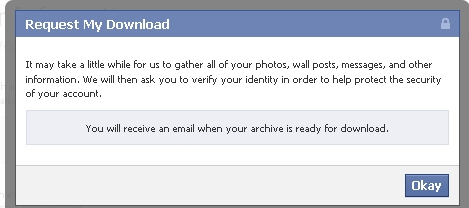
5. Now you wait. Request my download will display a message that you will be notified by email when your archive (data) is ready. Click on Okay. You can go do other things. Depending on how much data you have (I have alot of pix), it make take a day or so to receive the email.
6. You will receive an email (the email address affiliated with your facebook account) that says "Your download is ready". Follow the link to your data. This URL is unique for your info (you probably don't want to share it).
7. Re-enter your password and Click Continue.
8. Click on Download Archive.
9.Your download will be in a Zipped file. You have to unzip it order to use (I like 7File). It's free and easy to use.
Once you get your file unzipped, you will see folders for photos, video, html (all the content you've posted included your notes and wall) as well as index.html (your profile info). If you wanted to import your notes or wall into a blog, you would need to use the files within the html folder as a starting point.
For importing into Picasa for Google+, you can either use the Picasa Desktop software (then use Tools > Batch Upload), or a Chrome extension (Move2Picasa).
Here is the download process from Facebook via screencaptures:
1. Login to Facebook and Click on Account Settings then:

2. Click on Start My Archive
 3. Request my download

4. And now you wait for the email.
5. Wait for your email. You will receive an email that you use at Facebook with the subject"Your Download is Ready". Open the email and follow the link to start the download process. This URL is unique for your info (you probably don't want to share it).
6. Re-enter your password and Click Continue.

7. Click on Download Archive.
 8.Your download will be in a Zipped file. You have to unzip it order to use (I like 7File). It's free and easy to use. You will want to save your data and then unzip it so that you can get to your photos (or whatever else you want).

There are a variety of ways to get your photos, some using extensions or addons (if you are a Chrome user and just want to move your photos from Facebook to Google+, try the Move2Picasa extension).If you know of other extensions or tools to do this, please just add them them in the comments (the software Facebook Album Downloader no longer works, btw).
Batch downloading from Facebook also gives you all of your content which you can then repurpose in a number of different ways - you get copies of your profile info, your wall, your notes, your messages, videos, pix, etc. in one organized and zipped file.
A few thoughts I had for how to repurpose Facebook content: turn your notes into a blog, use your profile info to craft your linkedin (or other bio information elsewhere on the web), copy or move your videos to Facebook, find messages, get copies of your photos to use for whatever, collectively turn all of your Facebook content into a personal diary/journal, and as a means to keep a personal archive.
What you will need: a way to unzip your folders to get to your photos, (I like 7File). an internet connection, Facebook access, and space to put your files (you may want to put them on a flash drive).
Login to Facebook.
1. Go to Account Settings2. Click on Download a copy of your Facebook data
3. Click on Start my Archive (note this is just for your content - not your friend's photos)
4. At this point, you will see another screen (Request My Download) Click on Start My Archive (again)
5. Now you wait. Request my download will display a message that you will be notified by email when your archive (data) is ready. Click on Okay. You can go do other things. Depending on how much data you have (I have alot of pix), it make take a day or so to receive the email.
6. You will receive an email (the email address affiliated with your facebook account) that says "Your download is ready". Follow the link to your data. This URL is unique for your info (you probably don't want to share it).
7. Re-enter your password and Click Continue.
8. Click on Download Archive.
9.Your download will be in a Zipped file. You have to unzip it order to use (I like 7File). It's free and easy to use.
Once you get your file unzipped, you will see folders for photos, video, html (all the content you've posted included your notes and wall) as well as index.html (your profile info). If you wanted to import your notes or wall into a blog, you would need to use the files within the html folder as a starting point.
For importing into Picasa for Google+, you can either use the Picasa Desktop software (then use Tools > Batch Upload), or a Chrome extension (Move2Picasa).
Here is the download process from Facebook via screencaptures:
1. Login to Facebook and Click on Account Settings then:

2. Click on Start My Archive

4. And now you wait for the email.
5. Wait for your email. You will receive an email that you use at Facebook with the subject"Your Download is Ready". Open the email and follow the link to start the download process. This URL is unique for your info (you probably don't want to share it).
6. Re-enter your password and Click Continue.

7. Click on Download Archive.


Wednesday, November 16, 2011
Google's algorithm changes
Interesting post on changes to Google’s search algorithms (& an overview of 9 algorithm changes that have been released to the public)
"Google is trying to become more open about their search algorithm changes. Beyond the much-discussed "fresh" update, Google discussed recent changes in SERP (Search Engine Results Page) titles and descriptions, date-specified searches, image search signals, and more.
While Matt Cutts called this "An experiment in radical transparency", the information remains fairly veiled and covers only a small portion of the algorithm changes that have been made."
Monday, November 14, 2011
Privacy & You (& Facebook): new session for UGA
Privacy and You, December 14 10am-12n here at Training and Development.
(Note this class is open to UGA staff & faculty only - if you are not a UGA employee and are interested in a class, please contact me. I will be teaching an open class on privacy in late December)
“Do you know how to keep your social media content from going out to the whole world? We'll focus on practical tips for controlling what you post to the web via social media sites, how to use public wifi safely and how to use social media web sites securely. Using Facebook as an example, we'll explore security settings, learn how to control what you broadcast & talk about Facebook's subscribe feature. “
You might have seen this on our calendar, but it was on a different date. We have a few spots left in case you missed it, or can attend on this new date when you couldn’t have on the original date.
You may register by going to employee.uga.edu and selecting Training and Development, Register for a class.
If you have any questions contact training@uga.edu or 542-7062 or you may also contact me directly.
Hope to see you soon!
Thursday, November 10, 2011
..so, how do you *do* twitter? Advice & thoughts on getting started with twitter
Question of the day:
...so, how do you *do* twitter? It seems different than fb. Any words of wisdom?
A:
Twitter is different from facebook for me.Twitter is a very dynamic sharing, learning, and network tool. Facebook can be that, too, but it's more a mashup and convulated (imho).
So how do I do it?
- Use 'tweet this' buttons. When I read some (google reader, facebook, new york times, wherever) if I find it interesting & it has a ‘tweet this’ button – I do. Same with delicious bookmarking!
- Feed my blog to twitter. When I blog it automatically feeds into twitter (I blog 2-3 times a week usually at lunch or in the morning). I then schedule my blog posts over the week.
- I tweet my photos through to twitter using picnik.Tweet pix and posts occasionally via mobile (mostly when traveling).
- Schedule tweets through futuretweets (futuretweets.com) so that I spread out things like my photos over the day (or week)
- Connect with new followers. When I get new followers, I usually at least send them a Hi or a message (sometimes it’s a private direct message aka DM)
- Connect with those I follow. When I follow someone new, if I’ve met them IRL life, I pop them a mention @buffyjhamilton met you at a conference – your presentation on ereaders and learning rocked. (that kind of thing).
- Respond to my messages. I watch for @ (mentions) and RTs (Retweets) to me and I also acknowledge them or answer them unless spam).
- Use hashtags. I use hashtags when I post so that others can find my topics.
- Meme. I occasionally do the memes, followfriday is a way to shout out/acknowledge those you follow who rock.#frifotos is a way to highlight and share photos. #musicmonday is an excellent way to find some new music. You can find out more about tweetmemes here
- Ask questions (and answer questions, too). I do talk to my followers. Ask them how their day is going, what they’ve learned today, what creative thing they did, something like that… I also use twitter when I need tech support, or help especially with software.
- Comment on posts from those I follow. If a RT or mention a post, I usually comment on it, too.
- Use twitter instead of facebook. I tweet to facebook instead of just posting a link to facebook (I use selective tweets in facebook so that I don’t flood my facebook feed, either – that way I hit 2 audiences with one post)
- Participate in twitter chats. I do 1 or 2 twitter chats a week if I can – sometimes I just stumble across them (found several seo chats that way) other times I visit the "regulars": #libchat which is library related; #blogchat on Sunday night coordinated by Mack Collier which is about well... blogging but every angle imaginable (we even do site reviews on occasion - brave souls) - lots of high energy discussion. For fun there's social media slumber party on Friday by Dabney Porte /social media girlfriends (everyday). Some of the chats also followup or have companion content via other media @prosperitygal coordinates #speakchat Mon 9pm ET & produces radio shows #BBSradio Mondays 12pm ET and #WIBRadio (Women in business) follows. I know, If you think you're not in business - you're wrong - we're all commodities and businesses these days; our name is our brand (& for those of us who do consulting and freelance work no way around the business part of it).
Words of advice
- schedule time – it doesn’t have to be every day, maybe a certain amount of time that you’d read the paper or watch tv or even say Friday afternoon for an hour (or whenever there is a chat you want to do).
- don’t argue with people on twitter – 1)it’s pointless and 2)it’s public.
- be professional but personal.
- be real.
- fill out your bio completely, put up a nice photo, and choose a nice background. People do judge based on those things.
- subscribe (follow) people that you admire – but don’t just follow – twitter is a conversation.
- on that note: don’t just have a conversation, share too.
- don’t overshare (foursquare posts drive me batty)
- just do it – if you want to network, you have to tweet at least somewhat regularly although it doesn’t have to be 24/7 by any means.
Wednesday, November 2, 2011
managing digital content in classrooms (free webinar)
for those who might be interested...
---------- ----------
Live Webinar: How to Manage Growing Digital Content Needs Through Virtualization
From New York to Oregon, Florida to Utah, and more states are passing legislation in an effort to move toward digital content in K-12 and higher education. As electronic media take center stage and textbooks become a thing of the past, K-20 educators are seeking engaging ways to motivate students to learn.
Despite the advantages of this quantum leap forward, questions remain about the best strategies for managing such a complex transition. Widespread confusion exists about costs, end-user device options, data delivery and a number of other issues. Get answers to these questions and more!
Durning this free webinar, you'll learn how you can use virtualization solutions to:
* Help IT departments navigate the pathway to digital-content delivery
* Allow students a personalized experience through different devices and learning resources
* Facilitate distance learning, blended learning, online coursework, and bring your own (BYO) computing
Register now: How to Manage Growing Digital Content Needs Through Virtualization
When: November 17, 2011, 11:00 a.m. PT
http://thejournal.com/webcasts/2011/10/citrix_manage-digital-content-needs_virtualization.aspx?pc=e355em06&utm_source=webmktg&utm_medium=E-Mail&utm_campaign=e355em06
---------- ----------
Live Webinar: How to Manage Growing Digital Content Needs Through Virtualization
From New York to Oregon, Florida to Utah, and more states are passing legislation in an effort to move toward digital content in K-12 and higher education. As electronic media take center stage and textbooks become a thing of the past, K-20 educators are seeking engaging ways to motivate students to learn.
Despite the advantages of this quantum leap forward, questions remain about the best strategies for managing such a complex transition. Widespread confusion exists about costs, end-user device options, data delivery and a number of other issues. Get answers to these questions and more!
Durning this free webinar, you'll learn how you can use virtualization solutions to:
* Help IT departments navigate the pathway to digital-content delivery
* Allow students a personalized experience through different devices and learning resources
* Facilitate distance learning, blended learning, online coursework, and bring your own (BYO) computing
Register now: How to Manage Growing Digital Content Needs Through Virtualization
When: November 17, 2011, 11:00 a.m. PT
http://thejournal.com/webcasts/2011/10/citrix_manage-digital-content-needs_virtualization.aspx?pc=e355em06&utm_source=webmktg&utm_medium=E-Mail&utm_campaign=e355em06
Subscribe to:
Posts (Atom)