
Showing posts with label tools/tips. Show all posts
Showing posts with label tools/tips. Show all posts
Wednesday, February 26, 2014


_-_Scaled_(52%25)_-_2014-02-26_09.36.46.png)

Thursday, April 4, 2013
Firefox plugin check - quick and easy to do
Using firefox, use this https://www.mozilla.org/en-US/plugincheck/ link to see your plugins installed. It also tells you which need to be updated.
You can also see your firefox plugins using Tools&Addons&Find Updates in Firefox
You can also see your firefox plugins using Tools&Addons&Find Updates in Firefox
Saturday, September 3, 2011
Gmail: search & limit by date, exclude google buzz & more
If you've ever tried to search through 300 (or egads - 3000+) GMail emails, then you know how challenging the "never delete" idea is. Sorting is not really part of the GMail world (there is some sorting, but it rather limited). I usually build the search in the search box (similar to oldschool command line searching). (If you prefer to use an easy guided search tool, skip to the bottom of this post)
A typical search for me would look something like
drupal -buzz from:georgiawebgurl@gmail.com after:2011/5/25 before:2011/09/1 in:anywhere
Here are some of the search operators that I find useful:
If you don't know the operator, it is hard to figure out what to put there. There is help for that, though. One of the most easily overlooked links in the GMail interface is the search options link. It will help you build the search you need.


A typical search for me would look something like
drupal -buzz from:georgiawebgurl@gmail.com after:2011/5/25 before:2011/09/1 in:anywhere
Here are some of the search operators that I find useful:
- From searches who sent it to you
- To searches who you sent it to
- " " (quotes) putting a phrase in quotes will search the whole phrase
- - excludes word (I use -buzz to always exclude my G Buzz posts)
- Date range after:2011
/5/25 before:201 1/6/9 (Dates in yyyy/mm/dd format.) - in: is used to specify location (in:trash in:inbox in:spam in:anywhere) - in:anywhere is everything
- label: used to search by your labels
- a full list of search operators is listed here
If you don't know the operator, it is hard to figure out what to put there. There is help for that, though. One of the most easily overlooked links in the GMail interface is the search options link. It will help you build the search you need.


Wednesday, August 31, 2011
How to create a Google+ badge for your website (or blogger)
I used this very nifty little tool at widgetsplus to create a Google+ badge.
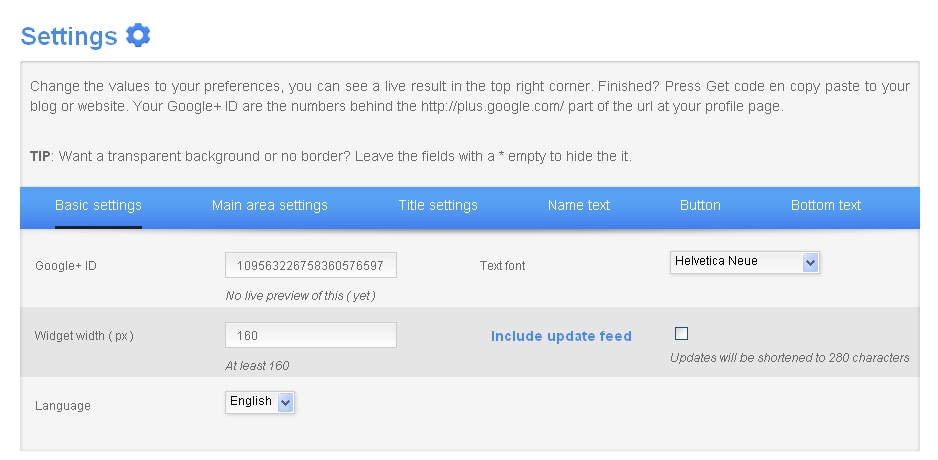
- Get your Google+ ID. (the easiest way is to login to Google+ Your ID number is the long string of numbers For example my public profile is http://plus.google.com/109563226758360576597; the ID number is that bit at the end. For more info about Google IDs, visit my post here.
- Copy your ID number.
- Customize your widget using the widget tool. If your name is very long, you will want to use a width greater than 160 or a smaller font size (it will truncate your name otherwise). My name is georgiawebgurl;I used a smaller font size since I wanted this in my sidebar.
- Basic settings: your Google+ ID, width of badge, and whether you want to include any of your latest posts.
- Main area settings: Widget colors.
- Title settings: Change the tag line (the default is Add Me On...)
- Name text: change colors, font type, and size of text relating to your name
- Button: Font size and colors for button (* makes transparent)
- Bottom text: Font size and color for text at bottom (including the latest posts, if you select 'Include update feed')
- Click on Get Code to see preview and get the code for copy + paste.
- Copy code.
- Go to Design.
- Decide where you want to add it on your blog template (mine is left sidebar) and click on Add a Gadget.
- Under Basic Gadgets find HTML/Javascript
- Click on the + button to add it to your design.
- Title (you can leave this blank if you do not want it have any text above your widget)
- Paste in your code from widgetsplus.
- Save your template. Voila!
Saturday, October 16, 2010
Customizing/styling a blogger rss feed using Feedburner
To find your blogger feed for a label (category/tag), check out this post.
Part 2 - CUSTOMIZING & STYLING A RSS FEED WITH FEEDBURNER
Open feedburner.com
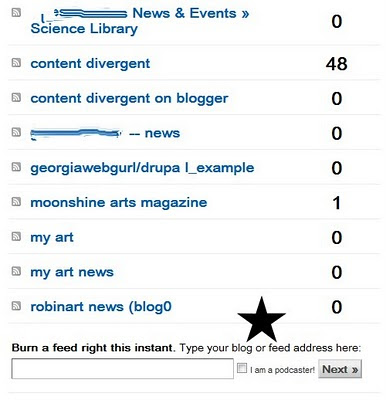


So, the feed is setup through Feedburner, but we still need to customize and style it.
Click Next. (This will allow you to also setup statistics for your feed for Free!)
I'm not going to be doing podcasts, so I just check the other options.

So, I check Clickthroughs and Feedburner stats, Then Next.
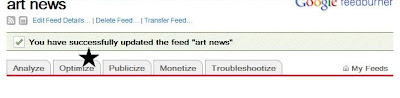
First, I'm going to optimize (though you can do this in most any order). I'm going to keep this simple and really not do too much customization.
The 2 most basic features are to make it browser friendly (just makes it more portable) and then smart (for mobile, etc.) So, we'll click first on BrowserFriendly and then SmartFeed.
BrowserFriendly: Probably the most important here is the choice of how the feed displays -- do you want just titles or content? I want both. You can also add a personalized message too. Like subscribe here, or something like that.
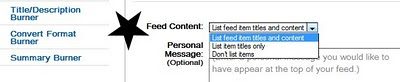 SAVE it to activate it and save the configuration.
Now to make our feed compatible with any service and then onward to publishing our widget (code)
Click on SmartFeed.

Click on Activate to make your feed compatible with any reader.
Now we're going to Publicize our feed (in other words, style and customize it for use on another website, Facebook, or well, just about any place...)
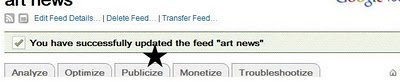
There are all sorts of choices here, so you may want to experiment. We'll start with BuzzBoost which creates code compatible with HTML.
 Basically, I've told it to show 10 items from my blog in html formatting (which should include links and images).
I've removed feed title, because I will customize that in Facebook.
Since I am the single author, there is no need to really include my name after every post. If you had a multi-author blog, that might be a very important feature.
Since I am using this to push content elsewhere, I don't really care to have the link to the feed display.
Once I make all of my selections, I will click Activate to save and get my code.
More customizing using buzzboost -- styling and aggregating from multiple blogs (could use multiple categories in blogger, too> available here
Copy and paste code for use in webpages, Facebook, etc.
Part 2 - CUSTOMIZING & STYLING A RSS FEED WITH FEEDBURNER
Open feedburner.com
- Sigh in with feedburner using your google/gmail account login password and ID.
- Before we can style and customize the display of our feed, we have to link it with Feedburner.
- You should see "Burn a feed right this instant. Type your blog or feed address here:" If you've already set up some of this, you will see this option at the bottom of your existing list.


- Type in your blogger URL -- if you want to only include a particular label (category/tag) you will need to use the URL for the category (as in Part 1a). If you want to include your whole blog, you would just put your blog url in.
- So, in my example:
- To style my feed just for my artwork, I would use
- http://contentdivergent.blogspot.com/feeds/posts/default/-/my%20art
- To style my feed for my whole blog, I would just use
- http://contentdivergent.blogspot.com/
- Then Click Next.
- Feed Title: This is what will display to you in your list of feeds and MAY be displayed in your website... (in our case, a Facebook page) should you choose that option. Either way, make it short yet descriptive.
- Feed address: You can just leave the default setting from feedburner.
- Click Next.
So, the feed is setup through Feedburner, but we still need to customize and style it.
Click Next. (This will allow you to also setup statistics for your feed for Free!)
I'm not going to be doing podcasts, so I just check the other options.
So, I check Clickthroughs and Feedburner stats, Then Next.

First, I'm going to optimize (though you can do this in most any order). I'm going to keep this simple and really not do too much customization.
The 2 most basic features are to make it browser friendly (just makes it more portable) and then smart (for mobile, etc.) So, we'll click first on BrowserFriendly and then SmartFeed.
BrowserFriendly: Probably the most important here is the choice of how the feed displays -- do you want just titles or content? I want both. You can also add a personalized message too. Like subscribe here, or something like that.
 SAVE it to activate it and save the configuration.
Now to make our feed compatible with any service and then onward to publishing our widget (code)
Click on SmartFeed.
Click on Activate to make your feed compatible with any reader.
Now we're going to Publicize our feed (in other words, style and customize it for use on another website, Facebook, or well, just about any place...)

There are all sorts of choices here, so you may want to experiment. We'll start with BuzzBoost which creates code compatible with HTML.
Basically, I've told it to show 10 items from my blog in html formatting (which should include links and images).I've removed feed title, because I will customize that in Facebook.
Since I am the single author, there is no need to really include my name after every post. If you had a multi-author blog, that might be a very important feature.
Since I am using this to push content elsewhere, I don't really care to have the link to the feed display.
Once I make all of my selections, I will click Activate to save and get my code.
More customizing using buzzboost -- styling and aggregating from multiple blogs (could use multiple categories in blogger, too> available here
Copy and paste code for use in webpages, Facebook, etc.
Blogger feed by label (tag/category) -- getting your URL
This post covers how to get a blog label / tag (category) into feedburner (or even how to determine what it actually is). If you need to know how to style your RSS Feed or repackage it for a HTML only page, you'll want to check out
If you're trying to get your blog into a Facebook page, there are a couple of different options, which I will cover later. Unfortunately some of the apps/tools in Facebook for pulling in feeds do not seem to work as well with the label feed, but I'm testing some ideas.
PART 1 -- HOW TO GET YOUR BLOGGER FEED FOR A LABEL / TAG (CATEGORY)
First click on a tag/label to get your url for that category (you do not need to be logged into blogger).
This is my link for my tag, my art
http://contentdivergent.blogspot.com/search/label/my%20art
The RSS for that category is:
http://contentdivergent.blogspot.com/feeds/posts/default/-/my%20art
In other words, you will find the URL for your tag in blogger and then replace search/label/ with
feeds/posts/default/~/
Doublecheck before you try to use it; either through editing in the address bar. You should see something that looks like this (this is firefox)
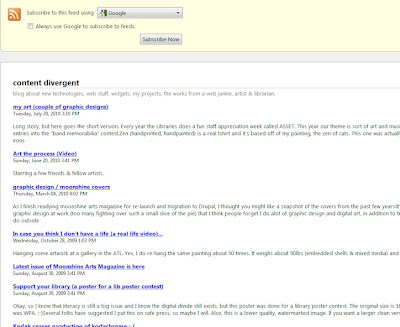
Success! -- at least in terms of getting your RSS for a category in blogger.
If that is all you needed, you are done.
If you're trying to get your blog into a Facebook page, there are a couple of different options, which I will cover later. Unfortunately some of the apps/tools in Facebook for pulling in feeds do not seem to work as well with the label feed, but I'm testing some ideas.
PART 1 -- HOW TO GET YOUR BLOGGER FEED FOR A LABEL / TAG (CATEGORY)
First click on a tag/label to get your url for that category (you do not need to be logged into blogger).
This is my link for my tag, my art
http://contentdivergent.blogspot.com/search/label/my%20art
The RSS for that category is:
http://contentdivergent.blogspot.com/feeds/posts/default/-/my%20art
In other words, you will find the URL for your tag in blogger and then replace search/label/ with
feeds/posts/default/~/
Doublecheck before you try to use it; either through editing in the address bar. You should see something that looks like this (this is firefox)
Success! -- at least in terms of getting your RSS for a category in blogger.
If that is all you needed, you are done.
Saturday, March 27, 2010
web dev links
Just passing along a couple of web dev links:
http://go2web20.net/
http://www.killerstartups.com/
that is all...
http://go2web20.net/
http://www.killerstartups.com/
that is all...
Friday, March 26, 2010
Question of the day: How to embed youtube videos & make them fit...
Depending on what browser and resolution you are using, you may find that your content (such as blog posts) which have embedded videos are running over your blog post area. You COULD change your stylesheet, but if everything works except for embedded Youtube videos, an easier answer might be to change the width of the Youtube player. This is super easy to do.
First you need to find a video that you want to use. ;-) Not all Youtube videos are embeddable and many copyrighted ones are not. If that is the case, you'll need to just link to them.
 If you're looking at the main user channel, you may not see the embed links, but you can get to them in a number of ways.
Underneath each of the videos posted on the channel, is a tab/button which says Info. Click on Info and you will see
View comments, related videos, and more
Click on this get to the video with its embeddable info.

The Embed box holds the code for the embeddable video. If you look carefully in the Embed box, you can usually see what the size is -- object width is the width that the embeddable video will be.
If the pre-configured options will work, you can skip customizing the code; just grab a copy (Ctrl + A) of the code from the Embed box. You'll be ready for the blogger section then.
 To customize the embeddable video:
Click on the tiny star icon (whoa, is that easy to miss!). Clicking on this will show you the different pre-configured sizes for an embedded video including size and color for the player.
Below the Embed box you will now see a bunch of options to configure your players.
Note: Include related videos may or may not include videos from the same user or necessarily on the same topic. If you want to create a group of videos, your better bet is to make a playlist, which can then be embedded.
In the Embed box, you will hit Ctrl + A (or right click Select All, if you have that functionality).
Embedding a video into a Blogger post
For Blogger (blogspot blogs) you MUST switch to the Edit Html button in order to embed the video. In any other blog service or product, you will need to somehow get to the html, unless you have embed Youtube functionality.
Edit Html
Find a spot in your post where you want to add your video.
Now hit Ctrl + P (paste) or right click paste if you have that functionality.
It will paste in something that looks
like this. Recognize that stuff? It is
indeed, the code from Youtube.
If you click on Compose, you will not see the video.Don't worry, the code is still there and if you click Edit Html you will see the code.
 If for some reason, you need to edit the width and height even more you can do it by tweaking the height and width even more, directly in the code.
..and that's how to do it (or at least, one way to do it). I realize this question has probably been answered alot over the 'net, but it was a question asked to me, so there you go!
If you do it right, you'll get something like this... yes, I am in this movie... LOL
First you need to find a video that you want to use. ;-) Not all Youtube videos are embeddable and many copyrighted ones are not. If that is the case, you'll need to just link to them.
Get the code from Youtube
 If you're looking at the main user channel, you may not see the embed links, but you can get to them in a number of ways.
 Underneath each of the videos posted on the channel, is a tab/button which says Info. Click on Info and you will see
View comments, related videos, and more
Click on this get to the video with its embeddable info.

The Embed box holds the code for the embeddable video. If you look carefully in the Embed box, you can usually see what the size is -- object width is the width that the embeddable video will be.
If the pre-configured options will work, you can skip customizing the code; just grab a copy (Ctrl + A) of the code from the Embed box. You'll be ready for the blogger section then.
 To customize the embeddable video:
Click on the tiny star icon (whoa, is that easy to miss!). Clicking on this will show you the different pre-configured sizes for an embedded video including size and color for the player.
Below the Embed box you will now see a bunch of options to configure your players.
Note: Include related videos may or may not include videos from the same user or necessarily on the same topic. If you want to create a group of videos, your better bet is to make a playlist, which can then be embedded.
In the Embed box, you will hit Ctrl + A (or right click Select All, if you have that functionality).
Embedding a video into a Blogger post
For Blogger (blogspot blogs) you MUST switch to the Edit Html button in order to embed the video. In any other blog service or product, you will need to somehow get to the html, unless you have embed Youtube functionality.
Edit Html
Find a spot in your post where you want to add your video.
Now hit Ctrl + P (paste) or right click paste if you have that functionality.
It will paste in something that looks
like this. Recognize that stuff? It is

indeed, the code from Youtube.
If you click on Compose, you will not see the video.Don't worry, the code is still there and if you click Edit Html you will see the code.
 If for some reason, you need to edit the width and height even more you can do it by tweaking the height and width even more, directly in the code.
..and that's how to do it (or at least, one way to do it). I realize this question has probably been answered alot over the 'net, but it was a question asked to me, so there you go!
If you do it right, you'll get something like this... yes, I am in this movie... LOL
Monday, March 22, 2010
What happened to tr.im (& reviews of URL shorteners)
Wandered over to shorten a URL @tr.im and found this:
http://thenextweb.com/us/2010/03/22/trim-small-app-problem/
Oooh, sounds like some political intrigue, hand wringing, and possible hurt feelings (not twitter's favorite child?) I know that I'm not the only one who used tr.im beyond twitter posts, though....
I know about tinyurl and bit.ly, but I thought I'd check out other options. I found this review of URL shorteners. Probably more info than you'd ever want about them, but there ya go.
http://blog.watchmouse.com/2010/03/url-shorteners-make-the-web-substantially-slower-facebooks-fb-me-is-slowest/
Found this article about it:tr.im is no longer accepting URL shortening requests via its website. May we respectfully suggest that you choose one of the many other wonderful alternatives available.
Please understand that this does not affect any software that has tr.im available within it. tr.im's API is available, and redirections are working normally.
http://thenextweb.com/us/2010/03/22/trim-small-app-problem/
Oooh, sounds like some political intrigue, hand wringing, and possible hurt feelings (not twitter's favorite child?) I know that I'm not the only one who used tr.im beyond twitter posts, though....
I know about tinyurl and bit.ly, but I thought I'd check out other options. I found this review of URL shorteners. Probably more info than you'd ever want about them, but there ya go.
http://blog.watchmouse.com/2010/03/url-shorteners-make-the-web-substantially-slower-facebooks-fb-me-is-slowest/
Saturday, November 28, 2009
Tips to eek out web performance
http://developer.yahoo.com/performance/
yslow from yahoo is a great site, as is some of the firebug stuff.
yslow from yahoo is a great site, as is some of the firebug stuff.
Wednesday, November 25, 2009
w3c cheat sheet
http://www.w3.org/QA/2009/11/w3c_cheatsheet_for_developers.html
"This cheatsheet aims at providing in a very compact and mobile-friendly format a compilation of useful knowledge extracted from W3C specifications — at this time, CSS, HTML, SVG and XPath —, completed by summaries of guidelines developed at W3C, in particular the WCAG2 accessibility guidelines, the Mobile Web Best Practices, and a number of internationalization tips.
Its main feature is a lookup search box, where one can start typing a keyword and get a list of matching
properties/elements/attributes/functions in the above-mentioned specifications, and further details on those when selecting the one of interest."
"This cheatsheet aims at providing in a very compact and mobile-friendly format a compilation of useful knowledge extracted from W3C specifications — at this time, CSS, HTML, SVG and XPath —, completed by summaries of guidelines developed at W3C, in particular the WCAG2 accessibility guidelines, the Mobile Web Best Practices, and a number of internationalization tips.
Its main feature is a lookup search box, where one can start typing a keyword and get a list of matching
properties/elements/attributes/functions in the above-mentioned specifications, and further details on those when selecting the one of interest."
Saturday, November 14, 2009
Google docs add templates
Didn't know that there were more templates beyond what is listed in google docs (and didn't notice that 'search templates' link in google docs?) Well, now you do. You can also get 'em here.... and here is how to create your own (well, sort of).
Wednesday, November 4, 2009
Presentation secrets from steve jobs
In short a good presentation should have:
1. A headline
2. A villain
3. A simple slide
4. A demo
5. A holy smokes moment...
http://www.businessweek.com/smallbiz/content/oct2009/sb2009106_706829.htm
1. A headline
2. A villain
3. A simple slide
4. A demo
5. A holy smokes moment...
http://www.businessweek.com/smallbiz/content/oct2009/sb2009106_706829.htm
Tuesday, October 20, 2009
Question of the day: My "hand" tool is stuck in Fireworks, Photoshop, etc.?
So, I had the dreaded stuck "hand" tool in MXFireworks 2004 (yeah, I know, way behind, I work for the govt....) where I absolutely could do nothing except move around using the hand tool.
After much googling, here are the responses I came up with (and I now share in hopes of helping somebody else) :
The first three are duhs, which didn't work for me ;-)
Turn off conflicting software/clear memory
After much googling, here are the responses I came up with (and I now share in hopes of helping somebody else) :
The first three are duhs, which didn't work for me ;-)
Turn off conflicting software/clear memory
- Restart the software (Fireworks, Photoshop, etc.).
- Restart your computer
- Turn off any Macro products you might be running
- Edit>Preferences>Reset all warning dialogs (Photoshop)
- Edit>Preferences (Fireworks; save -- I didn't reset my preferences, just re-saved the existing ones and it worked)
- Commands>Reset Warning Dialogs (Fireworks)
Monday, October 19, 2009
Bookmark in del.icio.us, send to twitter and, post to facebook
There are probably multiple ways to do this (friendfeed, google reader, etc.) but I'm already posting from twitter to facebook. So, throwing in another tool that I use (and love -- but really only as a personal bookmark service) del.icio.us, I discovered that I can now bookmark in del.icio.us and then send to twitter. Using the post from twitter, I can then send it right on over to facebook (using one of the twitter to facebook apps). If you need to setup a twitter to facebook app, may I suggest selective twitter, as explained here ?
If you only want to post bookmarks in twitter from delicious, you of course, can just ignore all of the facebook references. ;-)
Once you have you twitter feeding into facebook, the next step is whoa, easy!
Login to delicious. Tag/Bookmark.
You'll see a new field labelled SEND. This field actually allows you to email it, too.

Click on the Send field to link your del.icio.us and twitter accounts together.
Note, you can tweet ALL nonprivate bookmarks automatically; however to use selective tweet to facebook, you will need to add the #fb to send it onward. So, auto-send to twitter works, but unless you tweet everything from twitter to fb, it wouldn't automatically push over to facebook. Does that make sense?
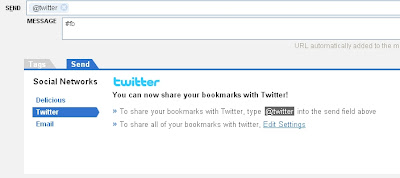 It is hard to see in these screencaptures (thanks blogger), but the important thing is to add @twitter in the Send field. Once you do that and hit enter, the message box will drop down. In the message box, write your tweet blurb. If you use selective twitter for facebook, add #fb to the end of your blurb. Do not include the link URL in the message; Del.icio.us will automatically truncate the URL and post it to twitter.
If you only want to post bookmarks in twitter from delicious, you of course, can just ignore all of the facebook references. ;-)
Once you have you twitter feeding into facebook, the next step is whoa, easy!
Login to delicious. Tag/Bookmark.
You'll see a new field labelled SEND. This field actually allows you to email it, too.
Click on the Send field to link your del.icio.us and twitter accounts together.
Note, you can tweet ALL nonprivate bookmarks automatically; however to use selective tweet to facebook, you will need to add the #fb to send it onward. So, auto-send to twitter works, but unless you tweet everything from twitter to fb, it wouldn't automatically push over to facebook. Does that make sense?
 It is hard to see in these screencaptures (thanks blogger), but the important thing is to add @twitter in the Send field. Once you do that and hit enter, the message box will drop down. In the message box, write your tweet blurb. If you use selective twitter for facebook, add #fb to the end of your blurb. Do not include the link URL in the message; Del.icio.us will automatically truncate the URL and post it to twitter.
Thursday, October 15, 2009
backup for twitter
Interesting idea -- an online backup service (mostly pay-to-play) but twitter backup is free.
http://backupify.com/
http://backupify.com/
Wednesday, September 30, 2009
Question of the day: Corrupt PDFs
Question of the day: Has anyone seen the following error when you try to open a pdf file:
There was an error opening this document. The file is damaged and could not be repaired.
My answer (I have lots of experience with bad PDF files... long story .. not my fault, though, I was just an innocent bystander... lol):
a few likely reasons:
If the PDF is on the web:
If you can get to the server level where the PDF resides (if it is on the web), you might be able to see if the File size = 0 or see if there are other anomalities. If it was emailed to you or given to you on flashdrive or card, just ask for a new copy.
good luck. It is possible to retrieve and restore some corrupted data but it's never easy. If you can get the original file and it's not corrupted, that is the easier answer.
I just accidentally corrupted a 16G SD card (moving between too many cameras too quickly -- which wiped out the exif for about 100 images making them unreadable) and was able to restore the CR2s and JPGs without manually rewriting the exif. I've also restored deleted images off a SD, but neither was exactly what I would call EASY. ;-)
There was an error opening this document. The file is damaged and could not be repaired.
My answer (I have lots of experience with bad PDF files... long story .. not my fault, though, I was just an innocent bystander... lol):
a few likely reasons:
If the PDF is on the web:
- The upload process could have hung up, creating an empty or damaged file.
- The upload could have been in ascii format, but the PDF contained images and should have been uploaded as binary.
- The file could have been corrupted during the creation process and uploaded (or emailed or saved to a drive) as corrupted.
- A problem with Adobe
If you can get to the server level where the PDF resides (if it is on the web), you might be able to see if the File size = 0 or see if there are other anomalities. If it was emailed to you or given to you on flashdrive or card, just ask for a new copy.
good luck. It is possible to retrieve and restore some corrupted data but it's never easy. If you can get the original file and it's not corrupted, that is the easier answer.
I just accidentally corrupted a 16G SD card (moving between too many cameras too quickly -- which wiped out the exif for about 100 images making them unreadable) and was able to restore the CR2s and JPGs without manually rewriting the exif. I've also restored deleted images off a SD, but neither was exactly what I would call EASY. ;-)
Thursday, September 3, 2009
How to disconnect twitter from facebook (and how to selectively tweet)
This post will cover 2 things: how to disconnect your facebook status from twitter and how to set up selective tweeting to facebook.
Selective tweeting
In facebook, there is a great application called selective twitter status, which gives you control over which of your tweets go to facebook. Once you add selective twitter to your facebook account and link your twitter and facebook accounts together, all you do is tweet (post) to twitter but add #fb at the end. Selective twitter will then ONLY send those tweets with #fb to facebook.
It works great, but... if you've been using Twitter application in Facebook (or any of the other twitter applications in Facebook that post to your status), you will need to remove those first.
To disconnect the Twitter application in Facebook (this is for the official Twitter application, but should work similarly for other twitter/fb apps)
Setup selective tweeting to Facebook
Selective tweeting
In facebook, there is a great application called selective twitter status, which gives you control over which of your tweets go to facebook. Once you add selective twitter to your facebook account and link your twitter and facebook accounts together, all you do is tweet (post) to twitter but add #fb at the end. Selective twitter will then ONLY send those tweets with #fb to facebook.
It works great, but... if you've been using Twitter application in Facebook (or any of the other twitter applications in Facebook that post to your status), you will need to remove those first.
To disconnect the Twitter application in Facebook (this is for the official Twitter application, but should work similarly for other twitter/fb apps)
- In Facebook, Under Settings (top menu) > Application settings
- On the Twitter application link, click the X to remove twitter.
- Do you want to remove ? Click Yes.
- You will get a popup box telling you Twitter has been removed.
- All done!
Setup selective tweeting to Facebook
- Search in Facebook for Selective Twitter Status
- Click on View Application (or the link for Selective Twitter Status)
- Click on Go to Application
- Enter your twitter user name, In the box with the Header, the one and only step
- Click on Save
- Click on Allow (so that facebook and twitter can make the connection)
- Click on Allow publishing (so that twitter can post to facebook)
- Go to twitter and tweet (post) away, adding #fb to the end of the posts you want to send to facebook as status updates
Thursday, August 6, 2009
Sunday, August 31, 2008
Hulu -- no sound?
I haven't had any problems watching Hulu using Firefox3, but I did have the occasional problem with sound on Firefox2.x.
In the earlier version, I sometimes had to un-install and re-install the flash add-on. Anyhow, since upgrading to Firefox 3. (now 3.1), I've had no problems.
...but for those watching Hulu with no sound, here is more help.
http://getsatisfaction.com/hulu/topics/obtain_picture_but_no_sound_on_free_video
In the earlier version, I sometimes had to un-install and re-install the flash add-on. Anyhow, since upgrading to Firefox 3. (now 3.1), I've had no problems.
...but for those watching Hulu with no sound, here is more help.
http://getsatisfaction.com/hulu/topics/obtain_picture_but_no_sound_on_free_video
Subscribe to:
Posts (Atom)