Search This Blog

Showing posts with label tips. Show all posts

Tuesday, March 25, 2014

Snipping Tool (Windows 7) - how to use it to screencapture dropdown menus and other tips

Recently, I had to screencapture some Windows 7 screens for training materials. Frustratingly enough, the screencapture tool, Snipping Tool, didn't seem to capture the dropdowns but it does, it is just a matter of knowing the trick!


To Find the Snipping Tool (and pin it to your menu for ease of access)

Click on the Windows menu button
(In the box 'Search programs and files' begin typing Snipping Tool - I only had to type Sni, before it came up, but if you have a lot of programs, you may need to type out the whole thing)

When you see it come up in the list, right click on Snipping Tool.


 Click on Pin to Taskbar.  

Capturing dropdowns or other objects (and putting it in hold)

When Snipping Tool opens it is already to screencapture. The problem is you may not be ready to screencapture OR you may want to capture a menu or other object.

Click on the Cancel button.  
At this point, you've put the Snipping Tool into a holding pattern. You may want to decide on your options for capturing. You can do a whole page, a rectangle, or free form. (see below to set the style of capture)

Now,  go to the menu you want to screencapture and then press,  Ctrl (control)  + Print Screen 
You will see the screen area become sort of translucent/slightly opaque and your cursor will change and you can draw around the object to be captured. Depending upon your settings, you will see your cursor turn into +.

 Setting Snipping Tool capture type and options

 Click on New>

  • Free-form Snip.  Draw any shape around an object with your finger, mouse, or tablet pen.
  • Rectangular Snip. Drag the cursor around an object to form a rectangle.
  • Window Snip.  Choose a window—like a browser window or a dialog box.
  • Full-screen Snip.  Capture the entire screen.

 Options>Snipping Tool Options

 Snipping Tools FAQs from Microsoft

http://windows.microsoft.com/en-us/windows/snipping-tool-faq#1TC=windows-7


Wednesday, May 8, 2013

Global Change Queue (Batch edit) @ELUNA 2103 notes


Global Data Change Queue Notes

http://works.bepress.com/julene/ (many batch edit presentations)

What can GDC do?
  • Can edit marc tags, fields
  • can delete, edit, add
  • can set preferences
  • can limit by user names including create rules but not implement - so some one person could create rules but someone else has authority to run; can define by user role what can be edited (R note could be useful for a review/test  process)
Examples:
  • all records must have ____ (specific criteria; R note in the case of POs 910 = PA + lacking 245 indicators )
  • like a global find and replace (R note: YES! yes! So, could fix typos in 5xx fields! or invalid MARC tagging in PO ; looks useful)

How to do it:
  • create record set (R note: we could use old provisional records with incorrect marc indicators as a test)
  • RULE: create a rule use if/then statements
    • further define rules through sets  - (R note: daisy chain together) to edit multiple fields - one rule for each field but then change them
  • Preview /Review before change
    • Will highlight changes
    • Jump through set of records (e.g., 10 records at a time - your choice)
    • If you find something that doesn't belong, you can remove it manually during preview
    • If rule doesn't work, you will get a notice
    • Update or review changes before you actually run
Run job or schedule

More powerful/easier to use than marcedit

More examples - updated authorized headings (RDA)
fixed fields
add OCLC #s
cleanup recon
add/remove standard notes
changed locations - pick and scan for item tho (of course you have to have the barcode.... but you don't have to have piece - R note) doesn't interfere with cataloging work - because whoever has record open has it (“locked” sort of) ; can schedule

Tuesday, October 18, 2011

Getting rid of top stories in Facebook (sort of) - the workaround

It seems every time a workaround is uncovered, Facebook blocks it.  One workaround that is still working is to manually create a list of all friends and just read that. It is chronological and not by top stories (thankfully!) Of course you have to select the list when you login.

Previous workarounds which may or may not work

Thursday, September 22, 2011

Tip: How to get rid of top stories in Facebook

Updated 10/19: Note: While this worked for a while, it no longer seems to, what is still working
is manually creating a list of all friends and just read that. It is chronological and not by top stories (thankfully!) Of course you have to select the list when you login.


[older workaround > let me know if it starts working for you] 
This was passed along to me by a fellow Facebook user and it works (for now)!

When logged in to Facebook, type this URL into your address box:
https://www.facebook.com/?sk=dateorder

Or you can just bookmark that url and login that way. 

(Note, Facebook will not save this, so you will need to do it every time).Unfortunately, it is temporary. If you go "home" or logout, you're right back to top stories.

Other ideas to get rid of the top stories and manage your feed:

you're welcome.

more ideas to fix the news feed here

Wednesday, September 21, 2011

Fixing facebook - seeing ALL updates from ALL friends instead of selected top stories

Egads. Hopefully there will be better global controls soon.

So to fix your stream.
Since you are probably missing people from your stream and don't even know it, the best way to fix your stream is to go to the new subscriptions menu. You will also see the people who are posting publicly to the web and will have the option of turning this feature on for your posts. At this time you can't really control whether you see Top Stories or Recent Stories first -- from what I'm reading Facebook is choosing that based upon how often you login (for some tips on managing this annoyance, check out this post).

Under Favorites>News Stream click on the pencil icon to the left. 
Click on Edit.
Click on Manage Subscriptions.
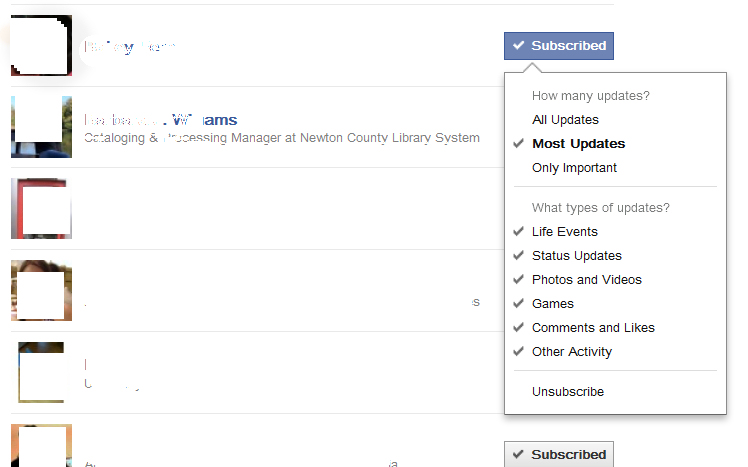
Click on each person's Subscribe button.

Change Most Updates to All Updates if you want to see everything. Each and everyone person you've subscribed to (well, if you want to see all of their updates and if you don't, change it to be what YOU want it to be). You can change these through the stream, too, but if you are not seeing people, then you're not going to see them in your stream to change their status.

Clicking on Recent Updates will change that to the default view in your stream - vs. Top Stories (or choose a list to see - you may have to make a new one). The option to all see news feed by ALL friends > went away. (good riddance!) If you're like me and you haven't tagged your family (because you don't want to give facebook even more demographic data) and you haven't put in your birthplace or hometown or high school (ditto), then facebook was unable to construct a family and close friends list (my lists are empty.) So, I guess I am lucky facebook didn't kick me out for not playing by their rules. ;-)

The good, the bad, the ugly...
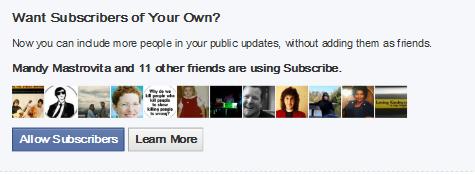
If your settings are public, Facebook has now made it transparent that the information is being published to the web. In a way, that is a good thing, anyone can easily subscribe to your Facebook feed. So, check those privacy settings carefully. Another thing Facebook is doing is allowing you to SUBSCRIBE to anyone with a public account without friending or liking (heh!) them (sort of like what you do with a youtube channel or twitter...) if they turn on "allow subscribers" - this is called a public subscription. (Actually, everything in Facebook is API based - think RSS feed- so it is essentially subscribable if the privacy setting allows it...) You can offer this service yourself or if you don't want to publish out to the web or allow people who aren't your friends to subscribe to you, doublecheck that this setting is off.


Here is that info in pix. 


What is a little strange is that you can't subscribe to people even if they use the subscribe button if there other settings override it - in other words, their wall is public, they have a subscribe button, but limit subscriptions to friends of friends. Of course, you could always just use the RSS for any public account anyhow...


Please check my facebook posts for the latest news. 

Saturday, July 23, 2011

Batch exporting photos from Facebook for use in Picasa and/or Google+ : a practical guide


So, you have photos in Facebook and you want to move your images to Google’s new social platform,  Google+ (note: if you are a Chrome user, you may just want to use Move2Picasa, an addon which will streamline transfer from Facebook to Google+ for photos). 

Or maybe you are tired of using Facebook and want to move your photos from Facebook  to something else. Or maybe you lost all of your images and Facebook has your only copy (I hope not, but it could happen). This practical guide will take you through the painless process of getting your photos from Facebook and then uploading them to Google’s Picasa, which as a side benefit puts them directly where they need to be for Google+. Yes, painless. You will be amazed at how easy this is to do. So let’s get started, shall we?

You can also use this batch download process to get images for Flickr, too (but then you'd need to use of course, use Flickr, to get your images into Flickr!)

Getting your Images from Facebook: the Batch Process
  • First you have to get your images from Facebook. You can not just batch download your images; it is all or nothing.
  • In Facebook>Account>Account Settings>Download Your Information
  • Once you are there, click on Download (once you download your information it will change to Learn More).
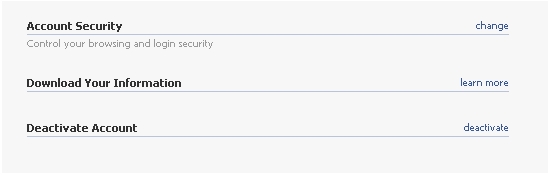
 

  • Need more help? Check out my step by step process for downloading content from Facebook. Basically, it will take a while for Facebook to collect up your data. You will receive an email with a link to get your download. Facebook will email whichever email account is linked to your Facebook to let you know your data is ready.
  • Your data will be downloaded into a ZIP file, a compressed folder format. If you do not have a ZIP file reader, you can download a free one called 7ZIP , http://www.7-zip.org/
  • I recommend making a new folder on your computer to stick all of your Facebook data.  It may be a lot of folders if you have a lot of albums.  
  • Once you unzip your Facebook data folder, you will see that your photos are in the "photos"  folder .
  • For each album you have created, there will be a subfolder in the “photos” folder. 
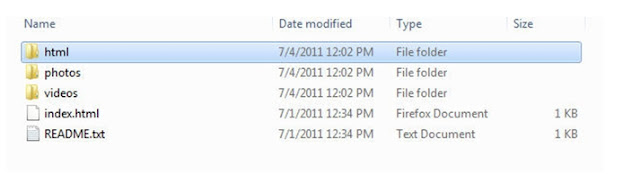
 
 
In the html folder you will find all of your wall posts chronological as a HTML file. If you want to import those into a blog, you will need to convert it to xml (try Tidy which is free). I'm not sure why anyone would want to convert a facebook wall to a blog, but it's doable.

Importing videos from Youtube works somewhat similarly to the web-based upload at Picasa Web (Method 2).

Method 1: Use Desktop installation of Picasa (easiest)
Once you get your photos, you will go to Picasa.
Using the desktop installation (free) is easiest as it has a Batch Upload feature.

In your Picasa Desktop>Library
Tools>Batch Import
Sign into your Google/Picasa Account.


You should THEN see the batchuploader. You should see your Facebook photo albums listed under Folders, if you do not you many need to rescan or import them to a different folder.

Click on the album you want to upload and set its permission (to choose multiple albums, click the box next to the each album name that you want to upload) . You can upload more than 1 album at a time, but they will all have the same permissions (in other words, you can't choose different permissions for different folders within a single batch upload). You will receive a message indicating which permissions you have chosen.

Method 2: Picasa Web Albums (http:// picasaweb.google.com)
If you haven't dowloaded Picasa you can upload directly to your Picasa Web Albums.
Go to Upload> Create a new album (or use an existing one).
At that point you will select all of the images within the folder you want to upload  (Control + A > Open) to start the upload process.

After Uploading:
Once your photos are uploaded to Picasa, you can either link to them through the Picasa Web Albums or you can Share them to your circles (network) via Google+. For each album, click on share to publish it to your circle. This will also allow tagging of photos, too.

If you've recently joined Google+ you will see this message:

 Make sure to go in to your Picasa Web Albums and Google+ Photos to see what tweaks might be needed (especially in terms of privacy).
There are other ways to get data from Facebook (Backupify is one option) and batch import into Picasa ( including writing your own scripts) but this is one solution available which is rather easy to do.